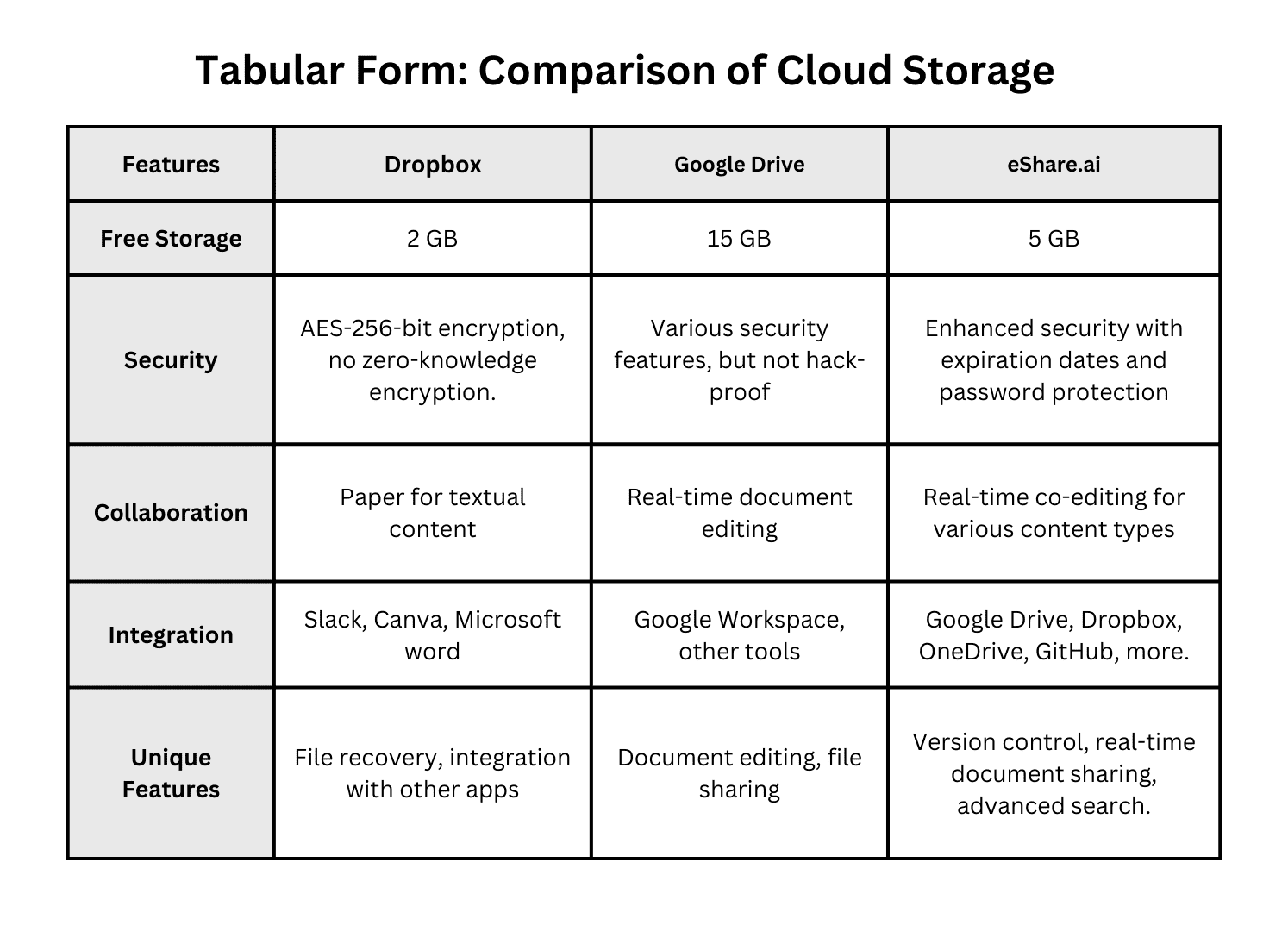
To download file from URL online, copy the file’s link, paste it into your browser or a trusted downloader, press Enter, and choose where to save it. Most files start downloading in seconds on any phone or computer.
A link looks simple, yet it can feel confusing the moment it refuses to behave. Sometimes it opens a page instead of saving a file. Sometimes it stalls at 99 percent. This guide walks you through every common method, explains why things go wrong, and shows you how to keep your device safe along the way.

Riya Sarkar
I write to shape ideas into something clear, engaging, and meaningful. I enjoy working across different industries, adapting skills to fit each brand I create for. My focus is on making content feel natural, easy to connect with, and worth reading. For me, good writing isn’t just about words, it’s about creating something that stays with the reader.
No More Hassle: Download Files from URLs Online Like a Pro
Why You Need to Switch to Online File-Sharing App Today!

Start Here: What a File Link Actually Is
Every file on the internet lives at an address, just like a house on a street. That address is the URL. When your browser visits it, the server hands over whatever sits there: a web page, a picture, a PDF, a video or a zip folder.
The ending of the address often tells you what you are dealing with. A link that finishes in .pdf, .zip, .mp3 or .jpg usually points straight at a file. A link that ends in .html or has no ending at all usually points at a web page, and the real file may be hidden behind a button.
This difference matters because it decides how easy your job will be. A link pointing straight at the file saves in one step. A page link needs one extra click, or a trick, to find the true source.
Quick Checks Before You Begin
A minute of care now saves a lot of frustration later. Run through these points first:
● Know where the link came from. A file shared by a colleague or a trusted site is fine. A link from a random message deserves doubt.
● Look at the start of the address. Links beginning with https:// use encryption, which protects the data on its way to you.
● Check your free space. A 4 GB video will not fit on a nearly full phone.
● Use a steady connection. Wi-Fi is better than mobile data for anything big.
● Make sure the link is complete. Chat apps and emails sometimes cut long addresses in half.
If all five look good, you are ready to go.
The Browser Method, Step by Step
This is the simplest route, and it needs no extra tools. When you need to download file from URL online only now and then, your browser is usually all it takes.
1.Copy the link. Right-click it and choose Copy link address, or press Ctrl+C (Cmd+C on a Mac) after selecting it.
2.Open a new tab. Click the address bar at the top of your browser.
3.Paste and press Enter. Use Ctrl+V (Cmd+V on a Mac). If the link points straight at the file, the download begins on its own.
4.Pick a folder if asked. Some browsers ask where to put the file. Choose somewhere you will remember, such as Downloads or Desktop.
5.Watch the progress. A small arrow or bar near the top of the window shows how much has arrived.
6.Open the file and check it. Make sure the name, size and type look right before you use it.
Sometimes the file opens inside the browser instead of saving. That is normal for PDFs, images and videos. Right-click the page, pick Save as, and the browser will store a copy for you.
A link may also sit behind a button or an image on a web page. Right-click that button and choose Save link as to save file from URL straight to your disk without opening it first.
Using a Web-Based Downloader
Sometimes your browser can’t handle a link. It may show an error, or the file may sit on a server that blocks direct requests. In those cases a web tool can help.
An online file downloader is a web page where you paste a link and press a button. The service fetches the file for you and then offers it back as a normal download. Some people call this kind of tool a URL file downloader, but the idea is the same.
These tools shine in a few situations:
● Your office or school network blocks certain websites, but allows the tool.
● You are on a device where installing software is not allowed.
● You need to turn a messy link into a clean download.
They also have downsides. You are trusting a stranger’s server with the link, and sometimes with the file. Free tools may show many ads, limit file size or slow things down. Never paste links that contain passwords, private tokens or personal documents into a service you don’t know. For sensitive files, stay with your own browser or a tool from a company you trust.
The Command Line for Quick Jobs
Developers and system administrators often like the terminal because it is fast and can be repeated with a script. If you have ever wondered how people grab files on servers that have no screen, this is the answer.
Two tools do most of the work. The first is curl, which comes with macOS, most Linux systems and recent versions of Windows. A basic command looks like this:
curl -L -O https://example.com/files/report.pdf
The -O flag keeps the original file name, and -L tells curl to follow redirects, which many links use.
The second tool is wget, popular on Linux:
wget https://example.com/files/report.pdf
Wget is friendly because it retries by itself when a connection drops. Neither tool needs a browser, so developers usually prefer a command that can download file from URL while they keep working on something else. If you are new to the terminal, start with the browser method and come back to this later.
Downloading on a Phone or Tablet
Phones add a few quirks, but the basics stay the same. On an iPhone, open the link in Safari, tap the share icon or the download prompt, and choose Save to Files. The file lands in the Files app, where you can move it anywhere.
On Android, open the link in Chrome and tap Download when it appears. Look for the finished file in the Downloads folder of your Files app, or in the browser’s own download list.
If nothing happens, long-press the link and pick Download link. This is the mobile twin of right-click and Save link as, and it solves many stubborn cases.
A few mobile tips help. Keep the screen on until the file finishes, because some phones pause downloads when they sleep. Switch to Wi-Fi for anything over a few hundred megabytes. And remember that some file types, such as .exe programs, cannot run on phones, so they are useless to save there.
Links From Google Drive, Dropbox and OneDrive
Shared cloud links are a special case. They usually open a preview page rather than starting a download, so pasting one into your browser may not do what you expect.
The easy fix is to look for a Download button or a three-dot menu on the preview page. That works every time and needs no tricks.
If you want a link that downloads on its own, there are small edits you can make. For Dropbox, change dl=0 at the end of the address to dl=1. For Google Drive, a link in the form drive.google.com/uc?export=download&id=FILE_ID can trigger the download for smaller public files. Larger Drive files may show a warning page first because Google can’t scan them for viruses.
This type of direct file download is handy when you share files with a team or need to feed a link into another program. Just remember that anyone with the edited link can fetch the file, so only use it for items you are happy to share widely.
Pulling Files From Pages That Hide the Link
Sometimes the thing you want is on a web page, but there is no obvious button. A gallery, a documents section or a long list of reports can be tricky.
Start with the simple way: look for text such as Download, Get file or a small arrow icon. Right-click that item and use Copy link address. Paste it into a new tab to confirm it starts a download.
If you cannot find anything, try your browser’s developer tools. Press F12, open the Network tab, and click the item on the page. Watch for a request ending in the file type you want, then open it in a new tab.
People who download files from website pages in bulk may use a browser extension or a script. This is fine for your own material or open data. Be careful with sites that forbid automated access in their terms, and avoid sending hundreds of requests at once, because that can slow the site for everyone.
Handling Very Big Files
A small PDF arrives in a blink, but a movie, a game installer or a big data set can take an hour. When you have to download large file from URL, a few habits protect you from starting over.
First, use a stable wired or strong Wi-Fi connection, and plug in your laptop. Second, close apps that eat bandwidth, such as video calls or cloud backups. Third, choose a tool that can resume a stopped download. Browsers like Chrome and Firefox offer a resume button, while wget with the -c flag and curl with -C – can pick up where they left off.
A download manager can also split a file into pieces and fetch them at the same time, which often speeds things up. Always check that you have enough room on the drive, and a little extra for unpacking if the file is a zip.
When the file finishes, compare its size with what the website lists. Many sites also publish a checksum, a short code that proves the file arrived without damage. Matching it takes seconds and gives peace of mind.
Keeping Your Device Safe
The link is only half the story. What you download can carry risks, so build a few simple habits.
● Trust the source. Prefer official sites and known senders. A surprise link in an email or chat is a classic trick.
● Read the file type. A document should not end in .exe or .scr. Be wary of double endings like invoice.pdf.exe.
● Keep security software on. Let your antivirus scan the file before you open it.
● Watch for pressure. Messages that say act now or your account will close are often scams.
● Update your browser. Newer versions block many known dangers on their own.
If you are unsure, upload the file to a scanning service before you open it, or ask the sender to confirm through another channel. A short pause costs nothing, while a malware infection can cost days.
When Things Go Wrong: Common Errors
Most failures have a simple cause. Use this table to find a quick fix.
|
What |
Likely |
What |
|
404 Not Found |
The file moved or the link is wrong |
Check the spelling, or ask the owner |
|
403 Forbidden |
You don’t have permission, or the |
Log in, use your normal browser, or |
|
Link opens a web page |
It points at a page, not a file |
Look for a Download button or use Save |
|
Download stops halfway |
Weak connection or timeout |
Retry, switch networks, or use a |
|
File won’t open |
Download was incomplete or the format |
Download again and check the file type |
|
Link expired |
Time-limited address |
Ask for a fresh link |
If none of these fits, try a different browser, clear your cache, or turn off extensions for a moment. Extensions that block ads can sometimes break download buttons.
Is It Okay to Download Whatever You Can Link To?
Being able to reach a file does not always mean you may keep it. Photos, music, films, software and books are usually protected by copyright. Downloading them without permission can break the law, and it can also break the rules of the website.
Safe choices include files you own, files shared with you on purpose, items marked with open licences such as Creative Commons, and public-domain material. When in doubt, check the website’s terms or ask the owner.
Workplaces add another layer. Your company may restrict what staff can fetch, especially programs. Follow those rules, because an unknown installer can cause trouble for the whole network.
Final Thoughts
Once you know how to download file from URL online, the task stops feeling like a puzzle. Copy the complete link, choose the right method for your device, keep an eye on safety, and check the result before you use it. For big files, add a resume-friendly tool and a stable connection.
Try it now with a harmless sample, such as a public PDF. After a couple of runs you will recognise which links behave and which need a nudge, and you will fix most hiccups in under a minute.
FAQ
Can I download file from link without installing any software?
Yes, you can. Any modern browser handles it. Paste the link into the address bar, press Enter, and the download starts if the link points straight at a file. If it opens a preview instead, right-click and choose Save as. No extra program is needed for everyday files like PDFs, images and zip folders.
Why does my link open a web page instead of saving the file?
Because the link points at a page rather than the file itself. Many sites wrap their files in preview pages. Look for a Download button on that page, or right-click it and choose Save link as. Cloud services like Google Drive and Dropbox do this often, so a small edit to the link may help.
Is a web-based downloader safe to use?
It can be, but only with the right care. Pick well-known services, avoid pasting private or password-protected links, and never use them for sensitive documents. Some free sites show intrusive ads or push unwanted software. When in doubt, use your own browser or a trusted desktop tool, which keeps the file between you and the source.
What is the best way to get a very large file without errors?
Use a tool that can resume. Download managers, wget with the -c option and curl with -C – all continue a stopped transfer instead of restarting it. Pair that with a wired or strong Wi-Fi connection, enough free storage and a sleeping-disabled device, and big transfers usually finish without trouble.
How do I know a downloaded file is not corrupted?
Compare its size with the size listed on the website, and check the checksum if one is published. A checksum is a short code made from the file’s contents, so if yours matches, the file is identical to the original. If the numbers differ, delete the file and download it again.
Does a download link expire?
Some do, and some don’t. Links from cloud storage, email services and online stores are often set to expire after hours or days for security reasons. A plain link to a public file on a website usually stays valid until the owner moves it. If a link stops working, ask the sender to generate a fresh one.
Can I fetch a file from a URL on my phone?
Yes. On iPhone, open the link in Safari and choose Save to Files. On Android, open it in Chrome and tap Download. If nothing happens, long-press the link and pick Download link. Keep the phone on Wi-Fi for larger files, and make sure there is enough storage before you start.
Is it legal to download anything I find online?
No, not everything. Files such as films, music, software and books are usually covered by copyright, and saving them without permission can be illegal. You are safe with your own files, items shared with you, open-licence material and public-domain works. When you are unsure, check the website’s terms or contact the owner.